Assessments
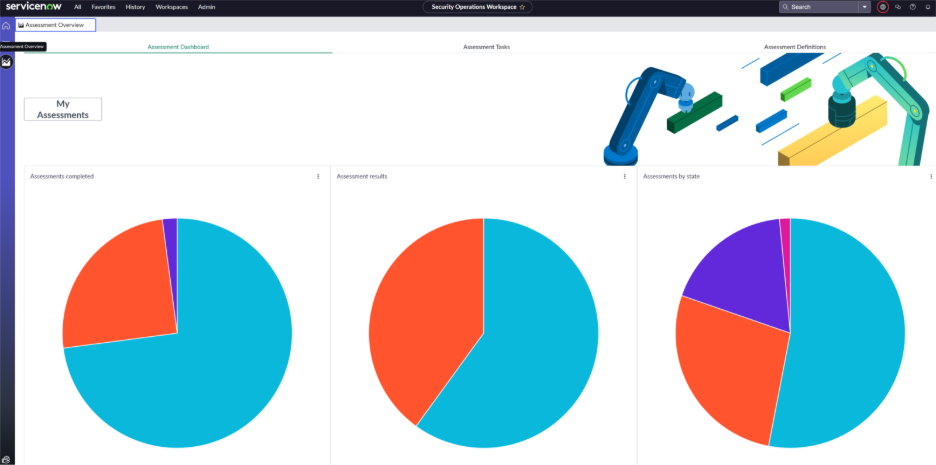
To access the Bearing Assessment Overview page, select the “Assessment Overview” icon on the left side of the screen. This icon is directly below the “Tasks” icon. The Assessment overview page contains three tabs (Assessment Dashboard, Assessment Tasks).
Assessment Dashboard
The Assessment Dashboard tab provides a comprehensive view of your organization’s assessments with pie graphs that depict the completed assessments, the results of those assessments, and categorized assessments by their state. Additionally, this page contains an option for “My Assessments,” which takes you directly to a page to view your assessments and surveys.
Assessment Tasks
The “Assessment Tasks” tab displays all of the assigned assessments in a list view. You can view the details of the assessments by clicking on the blue hyperlinked number associated with the assessment. To assign a new assessment:
- Click the blue “New” button in the top right corner and fill out the applicable fields.
-
- Number – An auto-generated Assessment Task number.
-
- Assessor – The ServiceNow user assigned to complete the assessment.
-
- Protected Asset – The Protected Asset that will be the subject of the assessment.
-
- State – The status of the assessment (Pending, Open, Work in Progress, Closed Complete, Closed Incomplete, Closed Skipped)
-
- Assessment Definition – The type of assessment that will be completed.
- Click “Save”
- Click “Assign Assessment” to officially assign the assessment to the Assessor, who will receive an email notification that the assessment has been assigned to them.
Assessment Definitions
The Assessment Definitions tab is where you can view all of your organization's created Assessment Definitions. To edit the details within an Assessment Definition, click on the blue hyperlink associated with the Name, edit the fields you would like, and click “Save”.
Create a New Assessment Definition
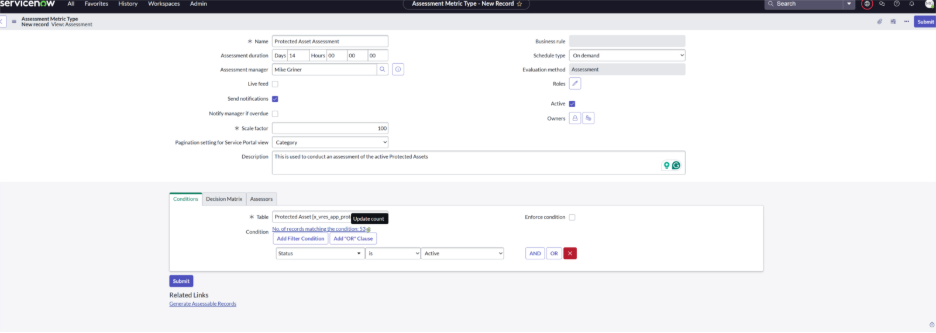
- Click on the “Create Assessment Definitions” button in the top right corner.
- Fill out the Assessment Metric Type Fields
-
- Name – The title of your assessment.
-
- Assessment Duration – How long you would like the Assessor to be able to complete the assessment.
-
- Assessment Manager – The ServiceNow user who will manage this new Assessment Definition
-
- Scale Factor – The weight/scale of each section of your assessment based on a numeric value (100 is generally preferred)
-
- Pagination Setting for Service Portal View:
-
-
- Category – Each category will be displayed on a single page, containing various questions for the category.
-
-
-
- Question – Every question will be displayed on a separate page.
-
-
-
- None – Every question for the assessment will be displayed on a single page.
-
-
- Schedule Type
-
-
- On-Demand – This will create an ad-hoc assessment.
-
-
-
- Scheduled – This will set a schedule for when the assessment will be assigned.
-
-
- Description – The details behind what this assessment will cover.
- In the Table drop-down, select which ServiceNow table you would like to conduct the assessment on.
- To refine your Assessable Records, select filter conditions for the table of the assessment.
-
- Once conditions have been added, select the “Update Count” icon to the right of “No. of records matching the condition” to generate an updated list of assessable records based on the conditions set.
- Click “Submit” in the top right corner.
Once the details of your assessment have been completed, you will be able to create Metric Categories and Assessment Metrics. These will act as your overall categories and the questions within them.
Metric Categories
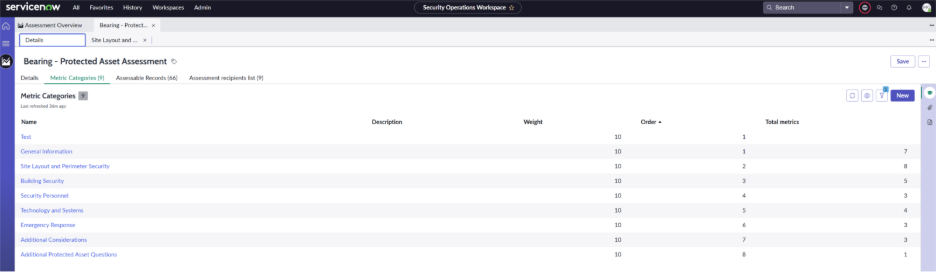
Metric Categories are the overarching categories that contain the questions within your assessment. These can be found in the Metric Categories tab of your Assessment Definition. To edit a Metric Category, select the category, edit the details, and click save. To create a new Metric Category:
- Click the blue “New” icon in the top-right corner of the page and fill out the applicable fields.
-
- Name – The name of the category.
-
- Type – What Assessment Definition the category will reside in
-
- Weight – The weighted value of the category to incorporate into your overall assessment (defaults to 10)
-
- Description – A detailed description of the Metric Category
- Click “Save”
- The Table field will populate automatically based on the Table conditions of your Assessment Definition.
- You can set Filter Conditions to generate the Assessable Records, similar to those on the Assessment Definition.
Assessment Metrics
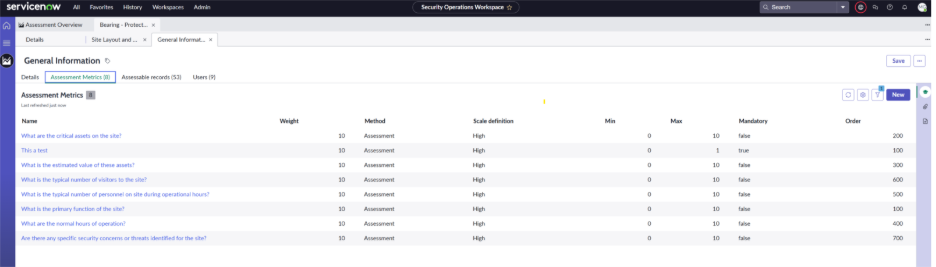
Assessment Metrics will act as the individual questions/fields to answer within the Metric Category of your Assessment Definition. To access the Assessment Metrics, within the Metric Category, click on the Assessment Metrics Tab. To edit an Assessment Metric, click on the associated metric, edit the details, and click Save. To create a new Assessment Metric:
- Click the blue “New” button in the top-right corner of the page and fill out the applicable fields.
-
- Name – The name of the Metric.
-
- Category – The Metric Category this Metric will reside in
-
- Method – The type of metric that will be available (defaults to Assessment)
-
- Weight – The weighted value of the metric to incorporate into the Metric Category (defaults to 10)
-
- Order – The number of which you would like the Metric to be ordered within the Metric Category
-
-
- For example, 1 will be displayed as the first metric, 2 will be the second metric, etc.
-
-
- Active checkbox – Check this box to make the metric active.
-
- Mandatory checkbox – Selecting this box will make this a mandatory metric, preventing the Assessor from moving forward until it is completed.
-
- Question – The question that will appear on the assessment.
-
-
- The best practice is to have the Name and Question fields be the same value. This is to access the appropriate metric in the future for editing.
-
-
- Details – Any additional information to include within the metric.
-
- Description – Provides a detailed description of the Assessment Metric
-
- Depends On – If a metric is selected in the Depends On field, this allows the new Assessment Metric to populate only once the Depends On metric has been answered.
-
- Data Type – The style of question you would like to ask (checkbox, date, multiple choice, yes/no, string, etc.)
-
-
- This selection will populate additional fields to aid in the options to select from the assessor.
-
-
-
- For example, if the Numeric Scale Data Type is selected, you will be able to include a minimum and maximum value to the assessor can select.
-
- Once finished, select “Save” in the top-right corner to save your Assessment Metric and add it to the Metric Category.