
Create a New Incident
- In the Bearing Security Operations Workspace, select the “Tasks” icon on the left side of the screen
- Select Physical Security Incidents > All on the left-hand side of the screen.
- Click the “New” button in the top-right corner
Incident Templates
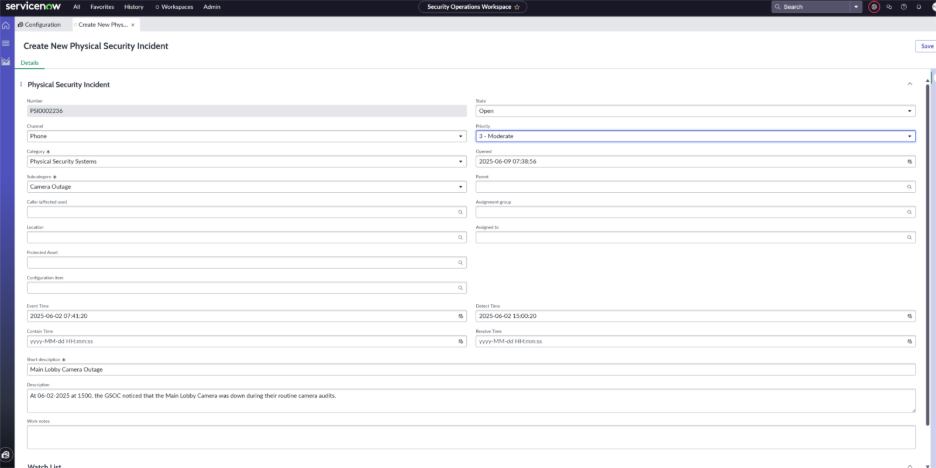
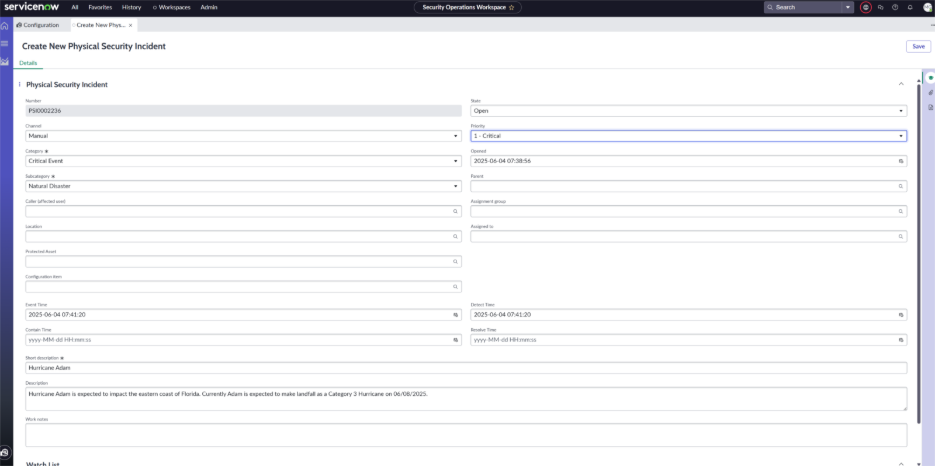
Below are a few templates/ideas of different types of Physical Security Incidents (PSIs). Keep the following in mind when creating these PSIs:
- Caller (affected user) - The individual who either reported the incident or was affected by the incident
- Assignment Group – The ServiceNow Group assigned to handling the incident
- Assigned To – The ServiceNow User assigned to handling the incident
- Location – The company location within the ServiceNow Locations table
- Protected Asset – The physical security asset that was imported to the Bearing Protected Asset Table
- Configuration Item – The physical security device within CMDB (camera, access reader, laptop, etc)
Create a Physical Security Task
- From the Bearing Tasks menu, open up a previously created PSI.
- Click on the Physical Security Tasks tab and click “New”
- Fill out the fields such as Assignment Group/Assigned To, Short Description, Description, and Priority.
- For Assignment Group, select a group that you are a member of. This will send you an email notification with the task details.
- Click “Save”
Security Objects and BOLO Creation
Security Objects can be used for entities of interest such as a suspicious vehicle, a threat actor, witness, victim, etc. They can be added to PSIs as Security Relations.
- In the Bearing Security Operations Workspace, select the “Tasks” icon on the left side of the screen
- Select Physical Security Incidents > All on the left-hand side of the screen.
- Select “New” to create a new PSI.
- Fill out the applicable fields and choose Workplace Violence for the Category and Customer Threat for the Subcategory.
- Security Objects are available in all incident types
- Save the Incident
- In the newly created PSI, select the “Security Relations” tab.
- This is where you will be able to view Security Objects related to the PSI.
- Click on “New” on the right-hand side of the screen.
- Select “Create Security Object” in the top-right corner
- In the pop-up window, click the drop-down and select Person
- Fill out the person information and select “OK”
- The User field can be used if the person is a ServiceNow user.
- In the Create New Security Relation page, click the "Relation Type” drop-down and select “Threat”
- In the “Priority” field, select “High”
- Ensure that your newly created Security Object is populated in the Security Object field.
- If it does not automatically populate, click the magnifying glass icon and select the newly created Security Object.
- Click “Save”
- Within the PSI, click on the Details tab, and click “Save” and then click the Generate BOLO Report button in the top-right corner.
- Enter supporting information in the fields and click “Create BOLO”
- The BOLO report PDF is now visible in the Activity Log of the PSI and will populate in the General tab of the Security Operations Workspace dashboard.