
Creating an Incident
In the “Tasks” page, select the blue “New” button in the top right corner. Keep in mind that if you are on the “Assigned to you” section of the tasks page, it will automatically assign the new incident to you; however, this can be changed once you are creating the incident. The fields in the ticket marked with an asterisk are required prior to saving the incident. Once you have filled out the applicable fields, click “Save” in the top right corner to create the incident. Below is a breakdown of the available fields within the new ticket:
- Number – This is the physical security incident (PSI) number automatically assigned to the ticket. Once a category is selected and the ticket is saved, it will change the number to reflect the incident category.
- Channel – The method by which the information was received.
- Category – The main incident classification
- Subcategory – The secondary incident classification that is tied to the Category.
- Caller (affected user) – The individual that reported the incident.
- Location – The place in which the incident occurred.
- Protected Asset – The specific area of the location in which the incident occurred.
- Configuration Item – The device that was impacted by the incident.
- State – The current status of the incident.
- Priority – The severity level of the incident
- Opened – The date and time in which the ticket was created (this is automatically generated).
- Parent – If applicable, the prior incident that subsequently caused this ticket to be created.
- Assignment Group – The ServiceNow Group that is tasked with maintaining the ticket.
- Assigned To – The ServiceNow User tasked with maintaining the ticket.
- Event Time – The date and time the incident initially occurred.
- Detect Time – The date and time the incident was detected.
- Contain Time – The date and time the incident was controlled.
- Resolve Time – The date and time the incident is completed and normal operations resumed.
- Short Description – The title of the incident
- Description – The details behind the incident
- Work Notes – Notes entered by the operator throughout the incident to track progress.
- Watch List - Identify a user or group that will have Read only access to the incident.
Physical Security Incident Components
Within a created Physical Security Incident (PSI), there are various components such as the PSI Details, Affected Cis, Physical Security Tasks, Security Alerts, Security Relations, Can Access, Compose, and Activity
Details
This tab will allow you to view and edit the information within the incident. This includes the fields mentioned above, along with the Compose feature, Activity Log, Agent Assist, and Attachments.
- Compose – This feature allows you to produce notes that will appear in the incident Activity log, as well as send emails directly from the incident to notify stakeholders.
- Email - The email functionality allows the user to send emails directly from the incident. These can be for ServiceNow users, groups, or email addresses outside of ServiceNow.
- Activity log – This field shows every change that is made within the incident.
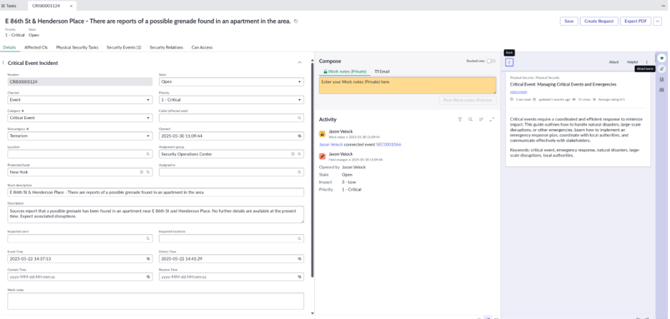
- Agent Assist – The Agent Assist function allows the user to view items related to the incident such as catalog items and Knowledge Base Articles. The Knowledge Base Articles can be viewed directly within the ticket for ease of access.
-
- To access Agent Assist, click on the cap icon on the right-hand side of the incident labeled “Agent Assist.”
- Attachments – The paperclip icon on the right-hand side of the screen allows the user to add attachments to the incident, such as images, videos, reports, etc.
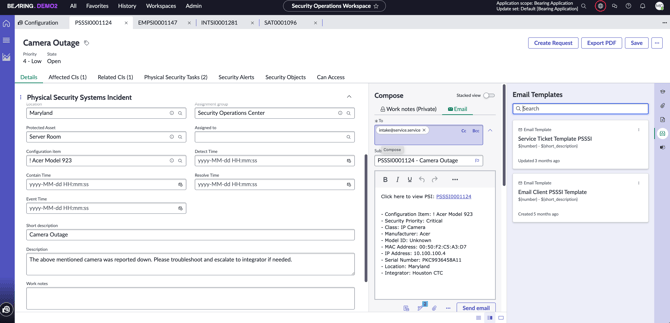
- Email Templates - Bearing offers out-of-the-box email templates to send as emails from the Physical Security Incident. Currently Bearing offers two email templates:
- Email Client Template - This is a quick template that uses the PSI number and the Short Description as the Subject line of the email. This can be used to quickly send information regarding the incident.
- Service Ticket Template - This template is used to send information to the Integrator Service Email that is assigned to the affected CI in the incident. This template will display the PSI number and Short Description in the Subject Line, as well as all of the associated CI information in the email body.
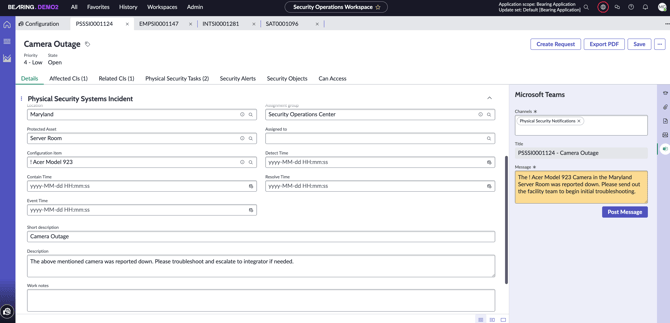
- Microsoft Teams - Bearing offers a direct connection to Microsoft Teams. This feature in the Physical Security Incident allows the user to send messages directly to a Microsoft Teams channel if the integration is connected.
Affected CIs
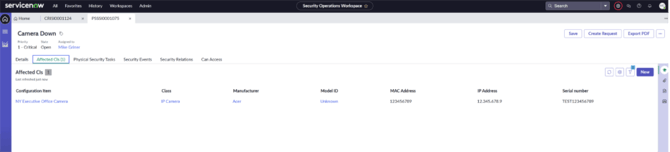
The Affected CIs tab allows you to view/add CIs that are affected by the incident. If a CI is added to the incident details, it will automatically populate on this tab. You are able to add additional CIs by clicking the blue “New” button and selecting various CIs that are affected.
Related CIs
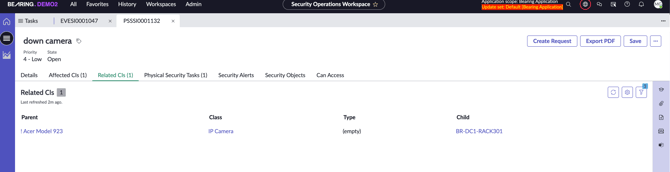
The Related CIs tab allows you to view the Affected CIs and the CIs that are related to it (Child). For example, if there is a camera outage incident, and that camera has a badge reader as a Child CI, the badge reader will be displayed in the Related CIs tab. This provides a hollistic view of the impacted security devices.
Physical Security Tasks
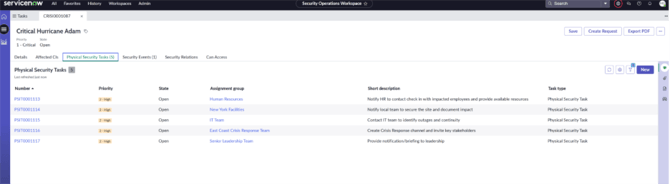
This tab allows you to create and view the status of tasks that need to be completed by various users or groups to ensure resolution to the PSI. To assign a new task:
- Click the “New” button in the top-right corner of the page.
- Fill out the applicable fields.
-
- Number – An auto-generated PSIT number associated with this Physical Security Task
-
- Parent – An auto-generated number associated with the Physical Security Incident
-
- Configuration Item – If applicable, the CI associated with the PSI and the task that needs to be completed.
-
- State – The state of the task (Pending, Open, Work in Progress, Closed Complete, Closed Incomplete, Closed Skipped)
- Channel - The method by which the information was received.
-
- Assignment Group – The ServiceNow group that will be assigned to complete the task.
-
- Assigned To – The ServiceNow user who will be assigned to complete the task.
-
- Short Description – The title of the task
-
- Description – The details within the task
Security Alerts
The Security Alerts tab is where you can view the alerts that are connected to the incident. These are added by the Alert Sources feature. For more information, see the Alerts feature below.
Security Object
The Security Object feature allows you to identify individuals or vehicles (Security Objects) associated with the incident. These can include, but are not limited to, suspicious vehicles, threat actors, witnesses, victims, etc.
Add a New Security Object
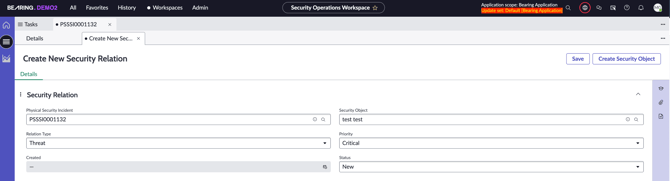
- Click the “New” button in the top right corner of the page and fill out the applicable fields.
-
- Physical Security Incident – An auto-generated number associated with the PSI that the Security Object is associated with.
-
- Relation Type – The association of the Security Object has with the PSI (Subject, Resource, Threat, Victim, Witness)
-
- Security Object – The entity/subject of the Security Object. If this is a new Security Object, see Create a New Security Object below.
-
- Priority – A criticality level assigned to the Security Object (Low, Medium, High, Critical)
-
- Status – The state of the Security Object (New, Investigating, Retired)
- To add an attachment to associate with the Security Object, click on the Attachment paperclip icon on the right side of the page and upload your file.
-
- These can be items such as an image of a vehicle or a person to use in a future BOLO report.
Create a New Security Object
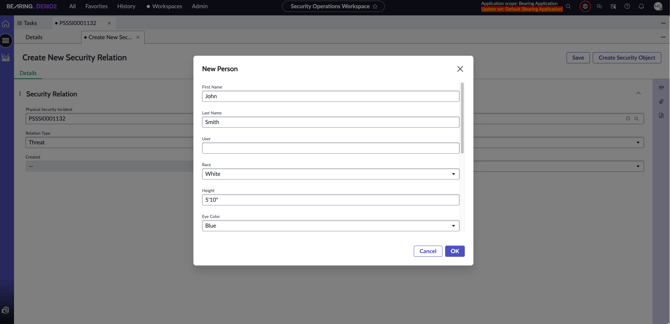
When assigning a new Security Relation to a PSI, and you need to create a new Security Object, within the Security Relation page, select “Create Security Object” in the top-right corner of the page. You will then select the Security Object Type, fill out the available fields, and select “OK”. This will add your newly created Security Object to the Security Object Table
Can Access
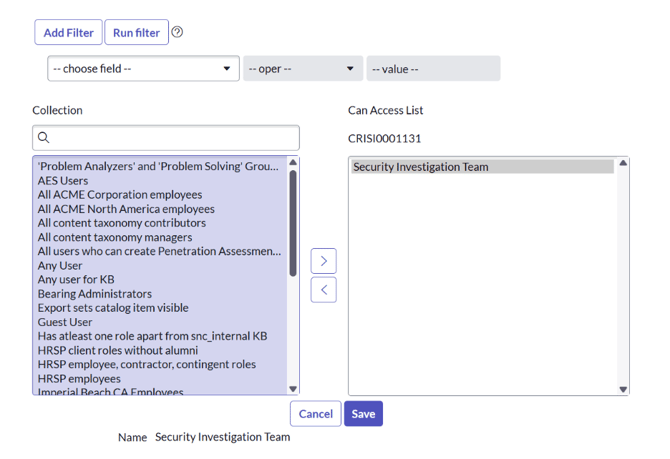
The Can Access tab allows the user to set security parameters on the PSI by allowing specific ServiceNow User Criteria to be able to access the PSI. To edit this field, simply click on “Edit” and add the appropriate User Criteria from the Collection list to the Can Access List and select “Save.”
Creating a BOLO
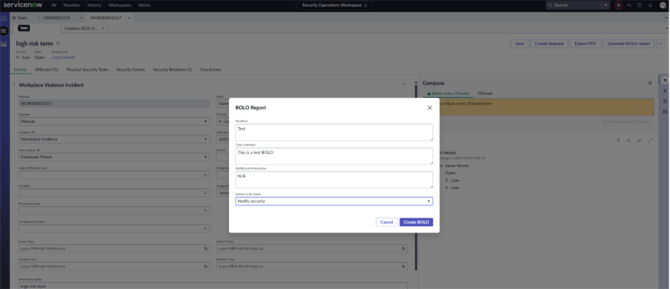
To create a BOLO, you must first add the Security Object to the Security Objects tab of the incident and ensure the Type is listed as “Threat”. Once you save the newly added details to the incident, select “Generate BOLO Report” in the top right corner of the page. Fill out the headline, case summary, additional information, and action to be taken portions of the pop-up window and click “Create BOLO”. The BOLO report will now be displayed in the Activity section on the right-hand side of the incident. You can click on the PDF link to view the BOLO, as well as download the PDF.
Creating a Physical Security Request
Physical Security Requests are used to access the various catalog items within the employee portal. Within a Physical Security Incident, select the “Create Request” icon in the top right corner of the page. Here you can search for and select the catalog item for the user (Badge Access Level, Lost/Stolen Company Device, etc.). These requests are available in the employee center and can be configured during deployment.