
Process Configuration
This tab within the Configuration Page contains various physical security operational processes, along with configuration options. These can be used to automate workflows to streamline your processes.
Configure Catalog Item
This feature allows you to edit the details behind the Catalog Item that will appear in the employee service portal. This includes but is not limited to:
- What the Catalog Item will contain – The title and details behind the item, what the Catalog Item generates, the script behind the Catalog Item, and the image to display
- Accessibility – What catalog and category the Catalog Item will reside in
- Portal Settings – The ability to hide attachments, make attachments mandatory, and hide the “Save as Draft” feature.
- Variables – the tables/questions that will appear in the Catalog Item for the end user.
Configure Process Flow
This feature is connected to ServiceNow Flow Designer Workflow Studio. This allows your operation to process various workflows once the catalog item is submitted.
Configure Assignment Group
This page will allow you to create rules for who the Catalog Item is assigned to once it is submitted. This is done by applying the rule to a specific table using conditions, assigning the Catalog Item to a user or group, or by generating a script.
Configure Approval Rules
This allows you to create rules to set users or groups as approvers for various requests.
Create a New Approval Rule
- Click “New” in the top right corner of the screen.
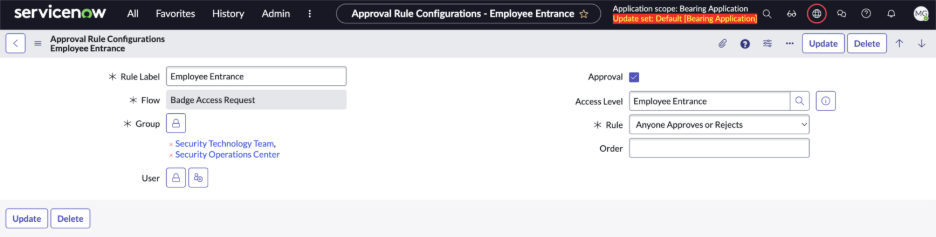
- Create a name for the rule in the “Rule Label” field.
- Best practice is to keep the Rule Label similar to the access level for future reference.
- For Badge Access Level approvals, select the Access Level for which you are creating the rule.
- Select the “Rule” to apply to this approval process.
-
- Anyone Approves or Rejects – If there are multiple users or groups assigned to this rule, only one user needs to approve or reject the request for the workflow to process.
-
- All Users Approve or Reject – Every single user assigned to this rule must approve or reject the request for the workflow to process.
-
-
- If there is a conflict (i.e., all approve but one rejects), the standard ServiceNow practice that is realized in the app right now is that if this happens, the request is rejected and the flow is ended with adding a comment that the request is rejected.
-
- In the fields below “Flow”, you will then select the users and/or groups to list as approvers for this rule. Multiple can be selected.
- The “Order” field is used if there will need to be multiple levels to the approval rule.
-
- For example, all users from Group A must approve the request, and following that, any user from Group B can approve the request. Group A will have an order of “100” since they come first, and group B will have an order of “200” since they will be second.
Edit Approval Rules
- Select the blue hyperlink associated with the rule you would like to edit.
- Make your edits.
- Click “Update” in the top right corner.
Delete Approval Rules
- Select the blue hyperlink associated with the rule you would like to edit.
- Click “Delete” in the top right corner.
- To delete multiple Approval Rules at once, in the Approval Rule Configurations table, select the check box to the left of the rules you would like to delete.
-
- Click the drop-down labeled “Actions on selected rows…” in the top right corner.
-
- Click “Delete”.
Configure Badge Access Levels
The Configure Badge Access Levels feature allows you to create, edit, or delete physical badge access levels within your organization.
Manually add an Access Level
- Click “New” in the top right corner.
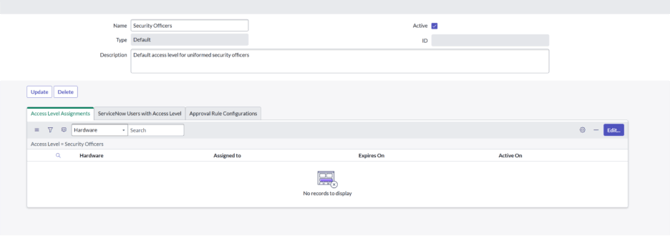
- Enter the name of the Access Level and a description.
- Click “Submit”.
Edit Access Level Details
- Click on the blue hyperlink that is tied to the Access level’s name in the “Name” column.
- Edit the data you would like to change.
- Click “Update” in the top right corner.
Delete an Access Level
- Click on the checkbox to the left of the access level in the first column.
-
- You can select multiple boxes to delete multiple access levels at once.
- Click the drop-down labeled “Actions on selected rows…” in the top right corner.
- Click “Delete”.