
Overview:
This guide covers the end-to-end process to quickly get you up and running in the Bearing application. The goal is to ensure a seamless transition for you into the Bearing application by helping you quickly import your data and begin leveraging its full capabilities.
Data Collection/Import
Key Data Points:
- Configuration Items
- Protected Assets
- Email Configuration
- Group Management
- Integrations (if applicable)
- Integration Import Jobs
Configuration Items
Configuration Items are physical devices such as cameras or access readers that are stored within ServiceNow’s Configuration Management Database (CMDB). To view a recording of this feature, click HERE.
- Download pre-defined import templates provided by Bearing
- Bearing IP Camera Import Template
- Bearing Access Panel Import Template
- Bearing Card Reader Import Template
- Fill out the available data
- Not every field is needed. You can start with the ID and Name to get your devices in the system, and then update the information later if you’d like.
- Best practice is to use the same text for Name and ID.
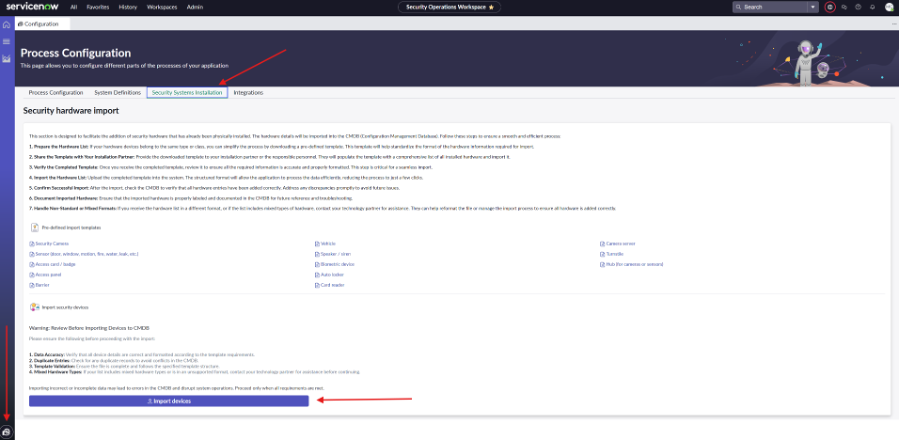
- Import the templates in the Security Systems Installation tab of the configuration page.
- Confirm your devices were successfully imported, and update CIs as needed.
- Not every field is needed. You can start with the ID and Name to get your devices in the system, and then update the information later if you’d like.
Protected Assets
Protected Assets are physical assets that are safeguarded by physical security measures. These can be locations, floors, server rooms, labs, etc. Bearing Protected Assets include fields such as priority levels, security groups, and owners, which can drive workflow automation. To view a recording of this feature, click HERE.
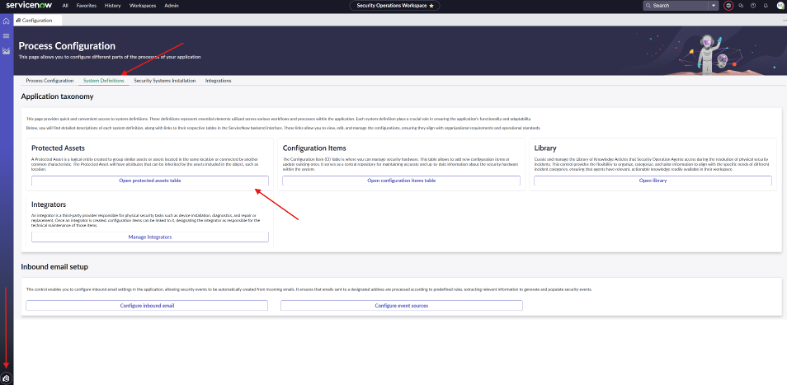
- Download the Bearing Protected Asset Import Template provided by Bearing
- Fill out the available data
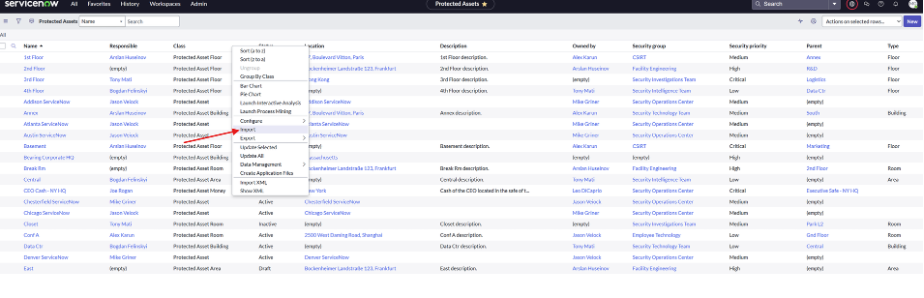
- In the Protected Asset Table, right-click on the headers, select import, and import your file.
- Confirm your Protected Assets were successfully imported.
Email Configuration
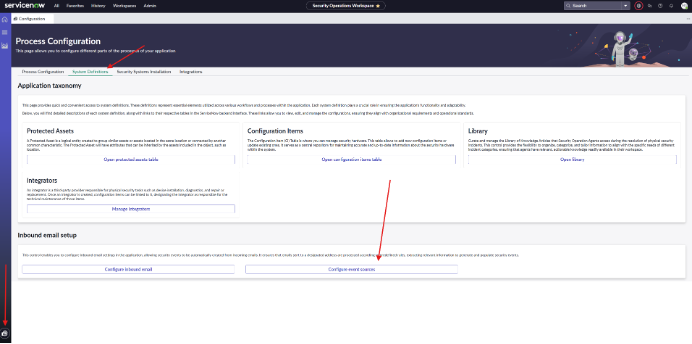
This process is used to identify the inbound email address and the sender domains to create events in Bearing directly from emails. These events could be from your company domain, integrators, risk management/intel, etc. To view a recording of this feature, click HERE.
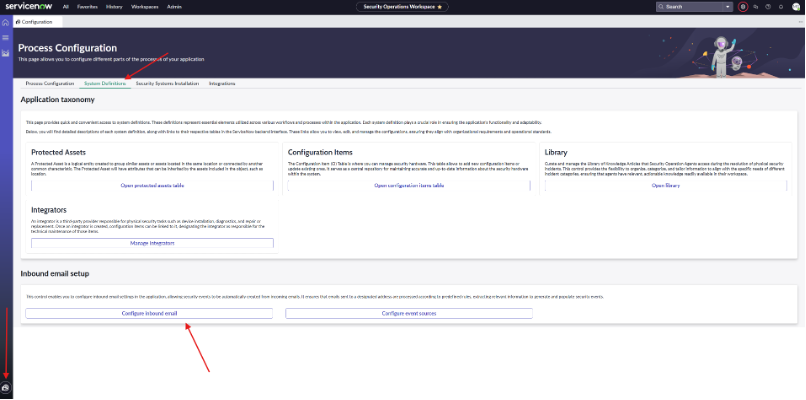
- In the Systems Definitions tab of the Configuration page, select “Configure Inbound Email.”
- Input your email credentials and hit “Save.”
- In the Systems Definitions tab of the Configuration page, select “Configure Event Sources.”
- Select “New” and input the source name and source domain (ex: ”everbridge.com”) and click “Submit.”
- These sources can be from intelligence alerts, the company domain to the GSOC, integrators, etc.
Knowledge Base Articles
Knowledge Base Articles serve as your organization’s SOPs/Playbooks that can reside directly within ServiceNow. These can be used by analysts to reference directly within the incident. To view a recording of this feature, click HERE.
- Ensure that you have saved .doc or .docx files of your SOPs/Playbooks to import as Knowledge Base Articles
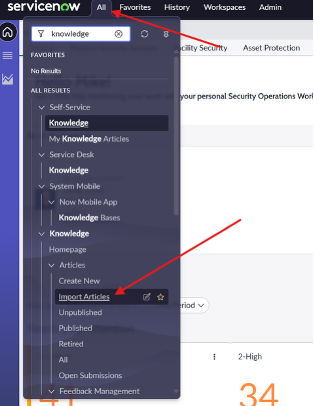
- In ServiceNow, select “All” in the top-left corner, search “Knowledge,” and select “Import Articles.”
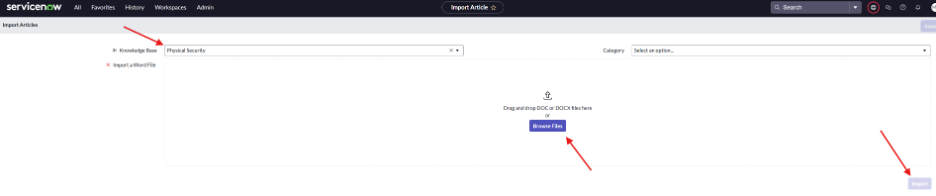
- Select the Physical Security Knowledge Base
- Click “Browse Files”
- Select the .doc or .docx files you would like to import (multiple can be selected
- Name the Articles
- Select “Import”
Integrations (if applicable)
Bearing currently supports two separate Integrations (Acre and Everbridge). These integrations are used to import Access Levels, Cardholders, and Cardholder Access Levels from Acre, as well as Assets and Contacts from Everbridge. To view a recording of this feature, click HERE.
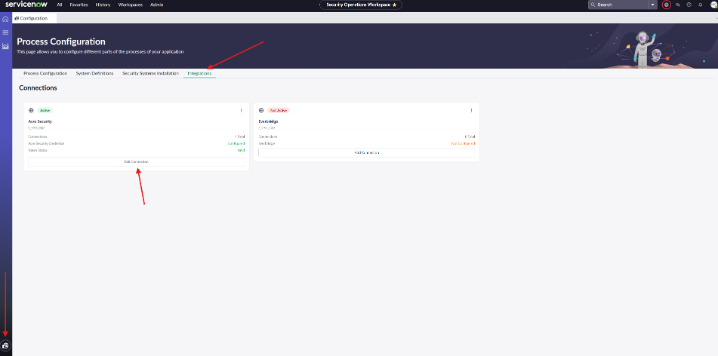
- Click on the Integrations tab of the configuration page
- On the integration you would like to connect to, select “Edit Connection.”
- Fill out the available fields and select “Update and Get OAuth Token”
Integration Import Jobs
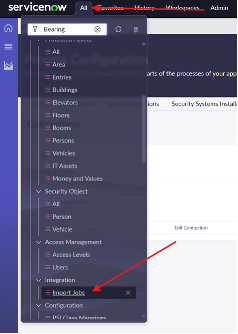
- Once the integration is connected, select “All” in the top-left corner, search “Bearing,” and select “Import Jobs.”
- Select “New” in the top-right corner
- Select the Connection and the Type of import you would like to run
- Click “Submit”

Events and Incidents
This feature is used to escalate Events into Physical Security Incidents. This process allows you to initiate workflows, tasks, etc. based on the information received from incidents once they are connected to a new or existing incident. To view a recording of this feature, click HERE.
- To access your Events and Incidents, click on the “Task” icon on the left-hand side of the screen.
- Manually create a new Event or Incident by selecting the “New” button in the top-right corner
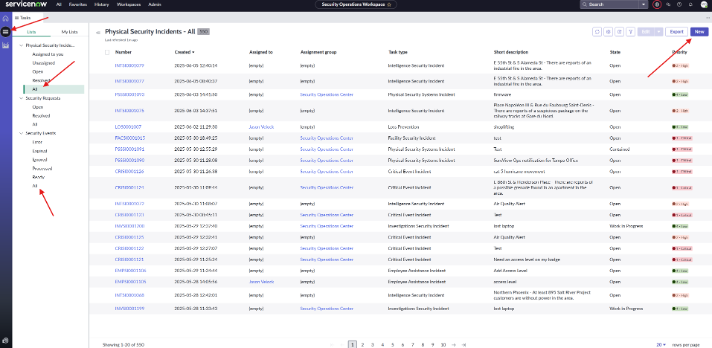
- Fill out the available fields such as Category, Subcategory, Assignment Group, Short Description, Description, etc., and save the Event or Incident.
- To connect Events to a new or existing incident, select the Event(s), click the drop-down on the “Edit” button, and confirm your selection.
- These will now be visible within the “Security Events” tab within the Incident