This page provides quick and convenient access to system definitions. These definitions represent essential elements utilized across various workflows and processes within the application. Each system definition plays a crucial role in ensuring the application’s functionality and adaptability. The Systems Definition tab of the Configuration page includes items such as Protected Assets, Configuration Items, Library, Integrators, and Inbound Email Setup
Protected Assets
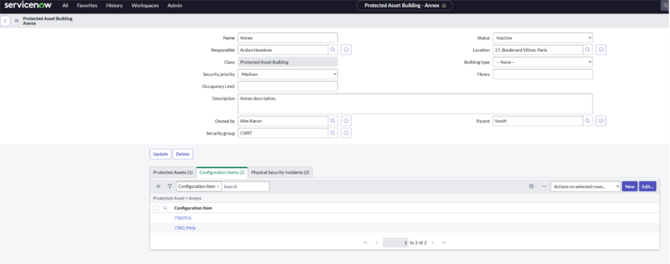
Manually add a single Protected Asset
- In the Bearing Security Operations Workspace, select the “Configuration” icon in the bottom left side of the screen.
- Select System Definitions > Open protected asset table.
- Click “New” in the top right corner.
- Enter the data in the available fields.
-
- Name – The name of the Protected Asset you are creating.
-
- Status – Identifies if the Protected Asset is Active, Inactive, Retired, or still in Draft.
-
- Responsible – The business owner that makes decisions for the asset (i.e. if a critical event caused the protected asset to close for the day, who makes that decision)
-
- Location – The location the Protected Asset is located in.
-
- Class – The type of Protected Asset you are creating (area, room, vehicle, IT, etc.)
-
- Description – A concise description of the Protected Asset you are creating.
-
- Owned by – The person responsible for managing the protected asset (i.e. the facilities manager)
-
- Parent – The hierarchy that the asset falls into
-
-
- For example, France Server Room A Camera 1 has a Parent of France Server Room A, which is in the Location France Data Center.
-
-
- Security Group – The group responsible for providing security to the Protected Asset
-
- Security Priority – The priority level your organization assigns to this specific Protected Asset
- Click “Submit”
Edit Protected Asset Details
- In the Bearing Security Operations Workspace, select the “Configuration” icon in the bottom left side of the screen.
- Select System Definitions > Open protected asset table.
- Click on the blue hyperlink that is tied to the Protected Asset name in the “Name” column.
- Edit the data you would like to change.
- Click “Update” in the top right corner.
Delete a Protected Asset
- In the Bearing Security Operations Workspace, select the “Configuration” icon in the bottom left side of the screen.
- Select System Definitions > Open protected asset table.
- Click on the blue hyperlink that is tied to the location name in the “Name” column.
- Click “Delete” in the top right corner.
- Click “Delete” in the pop-up window.
Add CIs to a Protected Asset
- Open a Protected Asset to view the details.
- At the bottom, select the “Configuration Items” tab.
-
- This will display all of the CIs associated with that Protected Asset
- Click “Edit” and select the CIs you would like to associate with this Protected Asset in the left-hand collection field and move them to the Configuration Item List field on the right.
- Click “Save”
Configuration Items (CI’s)
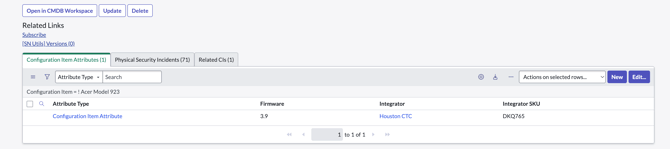
The Configuration Item (CI) Table is where you can manage security hardware. This table allows you to add new configuration items or update existing ones. It serves as a central repository for maintaining accurate and up-to-date information about the security hardware within the system. Bearing includes additional CI attributes not found in CMDB. These can include the CI’s firmware, the integrator assigned to the CI, and the integrator SKU.
View/Edit CI Details
- In the Bearing Security Operations Workspace, select the “Configuration” icon in the bottom left side of the screen.
- Select System Definitions > Open configuration items table.
- Click on the blue hyperlink that is tied to the CI’s name in the “Name” column.
- Edit the data you would like to change.
- Click “Update” in the top right corner.
Delete a CI
Deleting a CI should only be used if a CI was created in error or if there are duplicates. The best practice if a CI is no longer active is to change the Installed Status. This allows the ability to run historical reports on the CI if needed.
- In the Bearing Security Operations Workspace, select the “Configuration” icon in the bottom left side of the screen.
- Select System Definitions > Open configuration items table.
- Click on the blue hyperlink that is tied to the CI’s name in the “Name” column.
- Click “Delete” in the top right corner.
- Click “Delete” in the pop-up window.
Import CIs
- In the Bearing Security Operations Workspace, select the “Configuration” icon in the bottom left side of the screen.
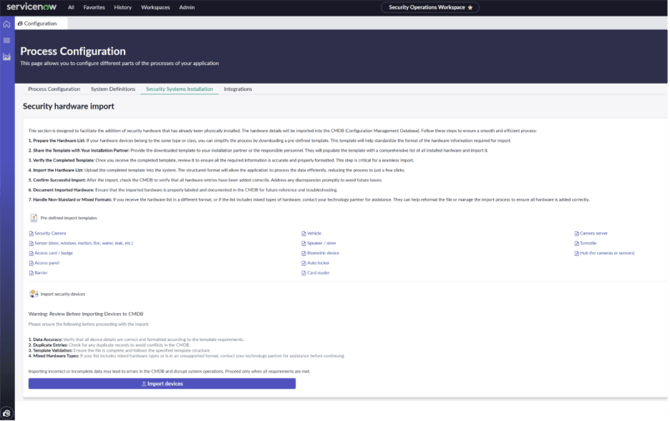
- Select Security Systems Installation, and download the pre-defined import template associated with the classification of the devices (security camera, access panel, sensor, etc.)
-
- When your integrator is installing a new security device, provide them with the associated pre-defined import template and ensure the fields are filled out properly.
-
-
- Once received, you can import this file to add it to your configuration items table.
-
- Fill out all applicable data (the more the better) and save the file.
-
- This data can include but is not limited to:
-
-
- ID – The unique ID of the CI
-
-
-
-
- Best practice is to use the Name of the CI. This field is what will be used to create the CI in CMDB and update it in future imports.
-
-
-
-
- Name – The name of the CI.
-
-
-
- Assigned to – Who the CI is assigned to.
-
-
-
- Category – IP Camera, computer, etc.
-
-
-
- Fault count – the number of defects recorded.
-
-
-
- Installed – the date the device was installed.
-
-
-
- Install Status – In stock, installed, on order, pending install, retired, etc.
-
-
-
- IP Address – the unique identifying numbers assigned to the device if connected to the internet.
-
-
-
- MAC Address – the 12-digit number assigned to the device acting as the device’s physical address on a network.
-
-
-
- Serial Number – the unique identifier assigned to the device by the manufacturer.
-
-
-
- Cost – The price of the device
-
-
-
- Vendor – The company that provided the device.
-
-
-
- Manufacturer – The company that produced the device.
-
-
-
- Model ID – The unique identifier used to distinguish the specific model.
-
-
-
- Model – the specific version or configuration of the device.
-
- On the Security Systems Installation page, at the bottom select blue “Import devices” icon.
-
- Select the CI class type (camera, sensor, etc.) that you would like to import, and click “Select File.”
- Select your file.
- Select “Import”
- Once the file is done uploading, select “Preview Imported Data.”
- After you have confirmed your data, select “Complete Import” at the bottom of the screen.
Configuration Item Attributes
While ServiceNow's CMDB has set fields for Configuration Items, Bearing has implemented custom fields for CI's titled Configuration Item Attributes. These attributes allow you to document the device Firmware, Integrator, and Integrator SKU. To access these fields, when you are in the CI, select the "Configuration Item Attributes" tab at the bottom of the page and select "New." Then, fill in the available information and hit Save.
Library
The library is where you can create and manage the Library of Knowledge Articles (KBAs) that Security Operation Agents access during the resolution of physical security incidents. This control provides flexibility to organize, categorize, and tailor information to align with the specific needs of different incident categories, ensuring that agents have relevant, actionable knowledge readily available in their workspace.
Access your Library
- In the Bearing Security Operations Workspace, select the “Configuration” icon in the bottom left side of the screen.
- Select System Definitions > Open library.
- Towards the bottom of the screen under “Knowledge” is where you can view all of your Knowledge Base Articles (KBAs)
- To access a KBA, click on the blue hyperlink associated with the KB number.
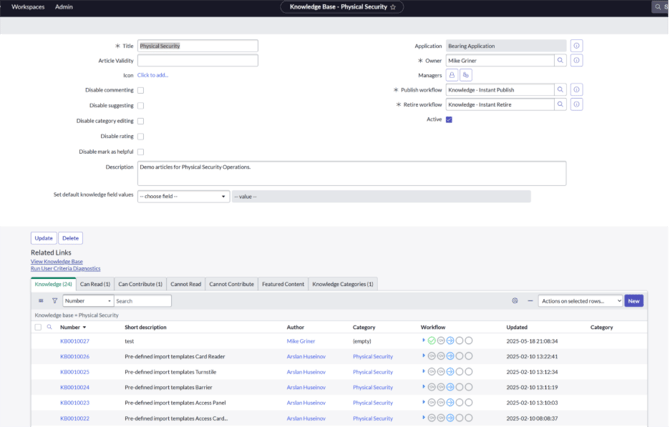
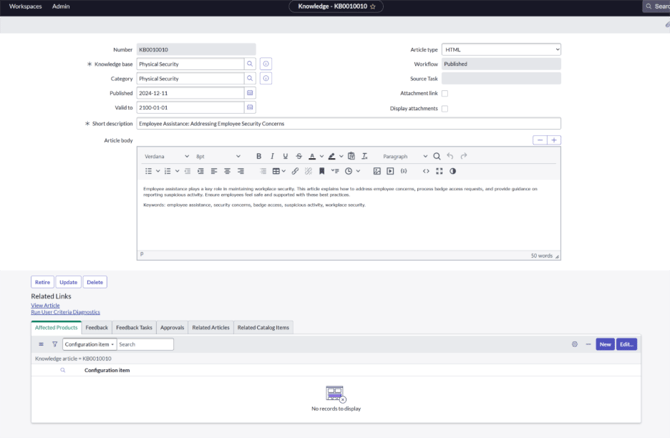
Create a New KBA
- In the KBA library, select the blue “New” icon at the top –right section of the Knowledge library.
- Fill out the Short Description
-
- This will serve as the title of the KBA.
-
- Keep in mind that the “Short Description” will associate with the Short Description field of the ticket for ease of access.
- Fill out the Article Body portion of the KBA.
-
- This will serve as the body of your KBA.
- If you would like to include an attachment in the KBA, click on the paperclip icon in the top right corner and select the file to attach.
-
- To include the attachment link in the KBA, check the box labeled “Attachment Link.”
-
- To display the attachment in the KBA, check the box labeled “Display attachments.
- When you have finished your KBA, click “Submit.”
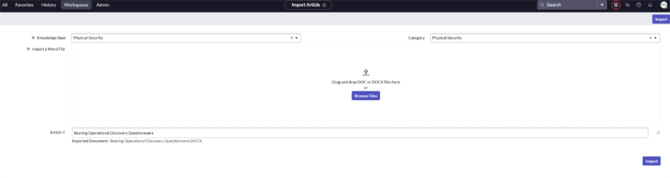
Import a File to KBA
- Click “All” and search “Knowledge.”
-
- Under “Knowledge” select “Import Articles”
- Select the Knowledge Base you would like to add the article to (Physical Security)
- Select the Category (Physical Security)
- Click “Browse Files”
- Select the DOC or DOCX files you would like to import.
-
- Multiple can be selected.
- If necessary, change the title of the KBA in the “Article” text field.
- Click Import
- One the upload is complete, click “Continue.”
-
- A pop-up will display with the Record Numbers and Short Descriptions of the articles you uploaded.
- Your KBAs are now available in your KBA library.
Integrators
Bearing allows for the security team to house a repository of integrator information such as the parent company, branch/office, service request email, Service and Sales Point of Contact Information, and assign CIs to their respective Integrator. To access the Integrators, you will need to navigate to the Configuration Page > System Definitions > Manage Integrators.
Add a New Integrator
- Click the “New” button in the top-right corner
- Select the Parent Company
- Fill out the applicable fields (Branch/Office, Service Request Email, Integrator Location, Service and Sales POC information)
- Click Submit
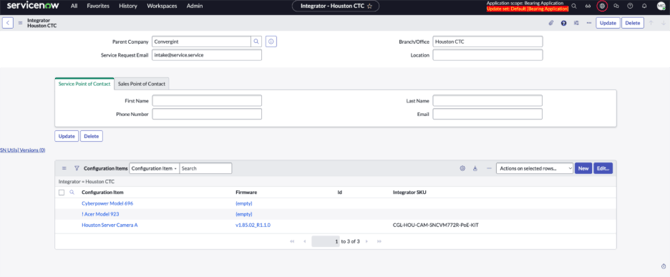
Assing CI’s to an Integrator
- In the Integrators table, click on the blue hyperlink associated with the Branch/Office
- At the bottom of the screen you will see the “Configuration Items” table, click “Edit”
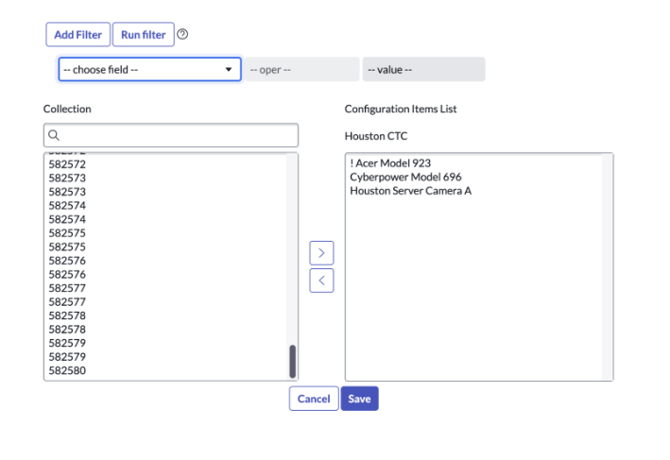
- Select the CI’s in the “Collection” field to assign to the Integrator branch, click the “>” arrow to move them to the “Configuration Items List” field
-
- To filter the CI’s you can see, use the filter drop down options at the top of the screen.
- Click “Save”
Trainings
Bearing allows for the security team to house a repository of Trainings and link them to items within Bearing, such as Access Levels. To access the Trainings, you will need to navigate to the Configuration Page > System Definitions > Manage Trainings.
Add a New Training
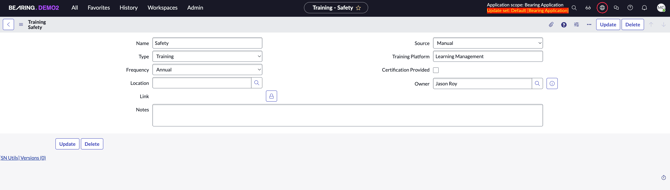
Once you click on "Manage Trainings" you will be taken to the "Trainings" table. Click on the blue "New" button in the top-right corner of the screen. From there you will fill out the applicable information regarding the training:
- Name - The name of the training
- Type - The type of training this will be (ie. a document or a training session)
- Frequency - How often the training needs to be completed
- Location - If the training is held at a specific location, you can input that here
- Link - A hyperlink to the portal where the training is located
- Source - If the training was imported into Bearing manually or by an integration
- Training Platform - A free text field to identify what platform the training is on
- Certification Provided - A checkbox to indicate if the user will receive a certification for completing the training
- Owner - The user that owns the training (someone from HR, Legal, etc)
- Notes - Any additional notes that could be beneficial to the information about the training
Link a Training to an Access Level
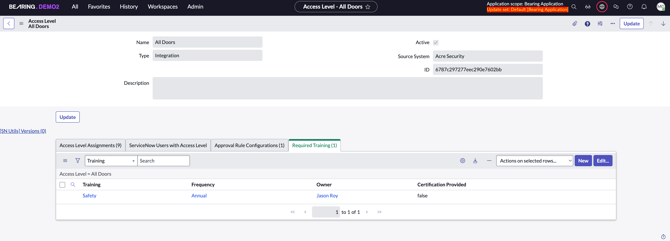
First you will need to access the Access Levels table by clicking on "Favorites" in the top-left corner, locate Bearing, and select "Access Levels" under the "Access Management" section. From there, select the access level, click on the "Required Training" tab, select "Edit" and then select the training(s) from the Collection field on the left and move them to the Required Training List on the right. Finally click "Save" and then click "Update" in the top right corner.
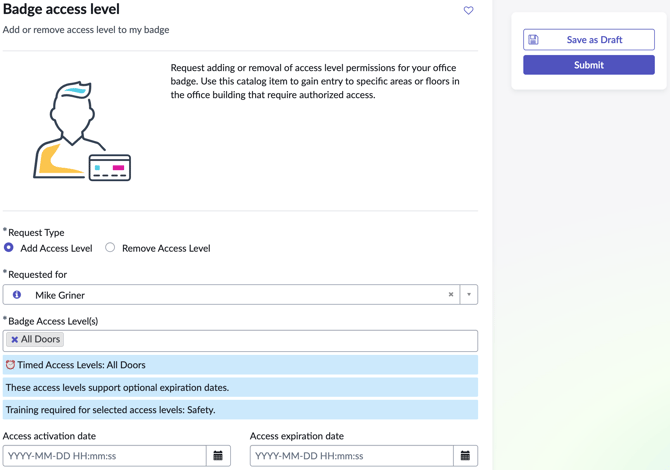
This feature will also provide the end user visibility into what trainings are required when selecting an Access Level for a Badge Access request.
PSI Access Configuration
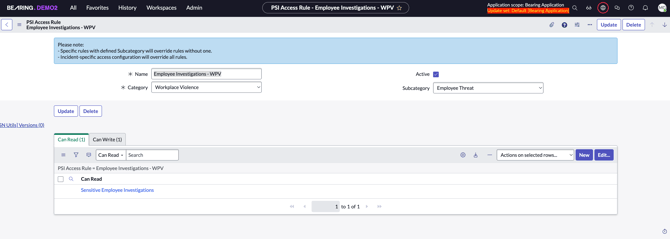
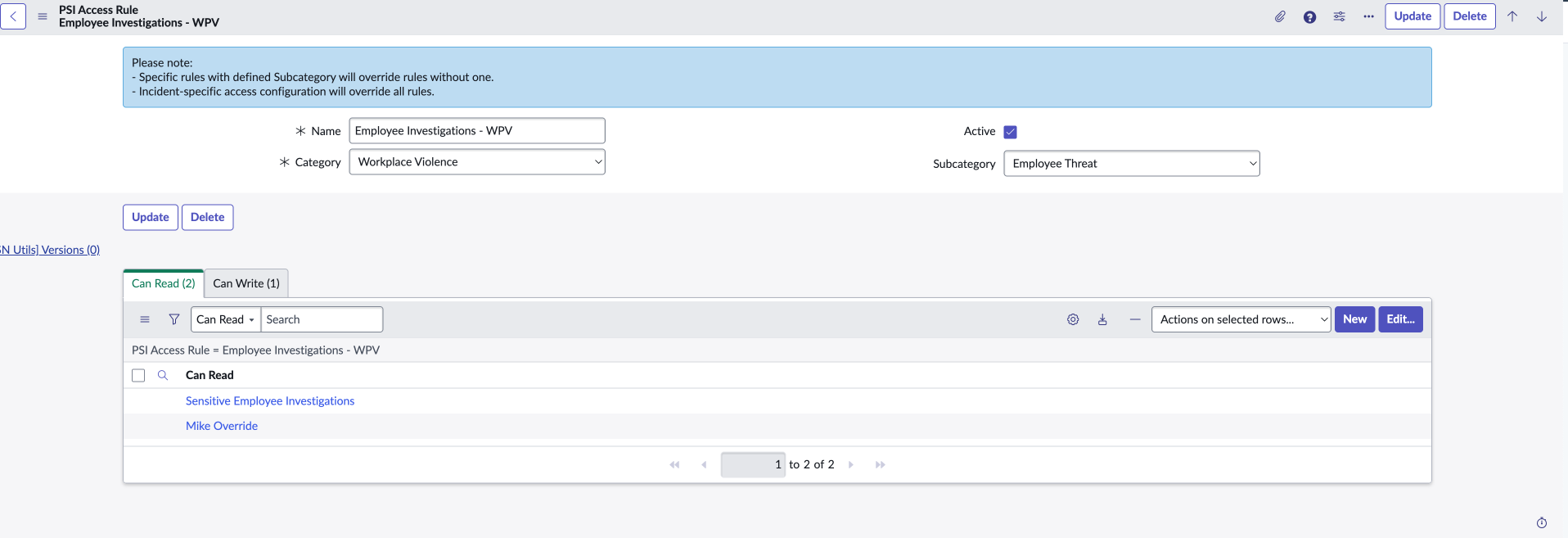
Bearing allows Admin users to configure read/write access to a Physical Security Incident (PSI) based on the Category and Subcategory of the PSI. For example, if an Investigations incident is created, you can allow members from HR and Legal to automatically have access to the incident. To access the PSI Access Configuration, you will need to navigate to the Configuration Page > System Definitions > Access Configuration > Configure PSI Access Rules.
Create a New PSI Access Rule
Once you select the "Configure PSI Access Rules" icon, you will be taken to the "PSI Access Rules" table. From there, click on the "New" button. Establish a Name for the rule, and select the Category and Subcategory that you would like the rule to apply for. Then select "Submit" in the top-right corner.
Assigning Read or Write Access to a PSI Access Rule
To assign Read or Write access to a PSI Access Rule, select the rule, then select either the "Can Read" or "Can Write" tab. Then select "Edit" and select the User Criteria(s) from the Collection field on the left and move them to the list on the right. Finally, hit "Save" and then "Update."
- NOTE: If you would like a Bearing Admin (or other specific users) to access an incident and they aren’t in the specified group, create a new group to include those individuals.
Process Automation
Assignment Rules
This feature allows the Bearing Admin to automatically assign Physical Security Incidents (PSI) to a user or group based on various conditions such as Category, Subcategory, Location, etc.
To create a new Assignment Rule, select the “New” button, establish a Name for the rule, select the conditions in the “Applies To” tab, select the User or Group in the “Assign To” tab, and then click “Submit.”
Approval Process Health
The Approval Process Health provides an audit for the approvers of a process (ex: badge access approval) within your security operation. This audit can be configured to run on a schedule, or on demand. To access the Approval Process Health, you will need to navigate to the Configuration Page > System Definitions > Approval Process Health. Currently Bearing provides two out-of-the box scripts for these audits:
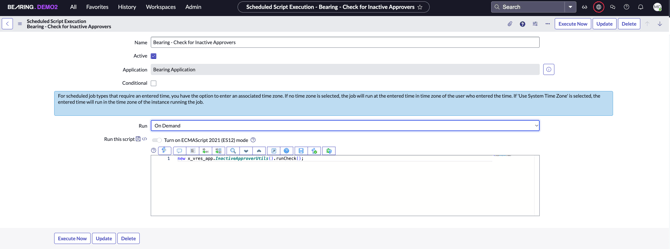
- Bearing-Check for Inactive Approvers
- This script will check for the indidviuals that are designated as an approver and are marked as inactive within ServiceNow. Additionally it will check for groups that are listed as approvers that do not have any active members.
- Bearing-Run Approval Audit
- This script will check for the individuals and groups that are listed as approvers, and assign a task for them to confirm that they are in fact an approver for the designated process.
Configure and Run the Audit
In the Approval Process Health section, select "Manage Job Schedule." From there you will select which process you would like to configure and run. To change the schedule of the audit, select the drop down box associated with "Run" and select the timeframe in which you would like to run the audit (the system defaults to On Demand) You can then select "Update" to confirm the new audit schedule, or you can select "Execute Now" to immediately run the audit.
Inbound Email Setup
To access the Inbound Email Setup feature, navigate to the Configuration page > System Definitions tab, and locate the Inbound Email Setup section. This feature enables you to configure inbound email settings in the application, allowing security alerts to be automatically created from incoming emails. It ensures that emails sent to a designated address are processed according to predefined rules, extracting relevant information to generate and populate security alerts.
Configure Inbound Email
This feature is where you can designate what email address to receive inbound emails to generate Alerts within the Bearing Application.
- Click on Configure Inbound Email
- Select “New” in the top right corner.
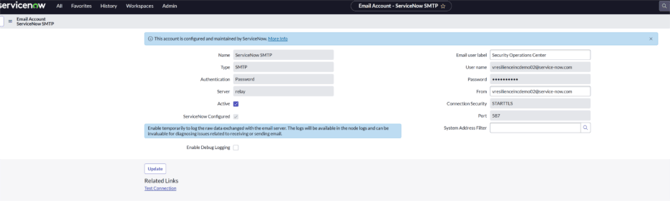
- Fill out the below fields as follows:
-
- Name – ServiceNow SMTP
-
- Type – SMTP
-
- Authentication – Password
-
- Server – Relay
-
- Active – Make sure the box is checked.
-
- ServiceNow Configured – Make sure the box is checked.
-
- Email user label – Enter the name of the email group (i.e. Company SOC)
-
- Username – Enter the email address.
-
- Password – Enter the password for the associated email address.
-
- From – Enter the same email address.
-
- Connection Security – STARTTLS
-
- Port – Enter the Email encryption Port.
-
- Select “Submit”
Configure Alert Sources
With this feature, you are able to configure which incoming email domains will generate an Alert in the Bearing application. This can be used to reduce the need to monitor your inbox for actionable emails such as badge access requests from your company domain, intelligence alerts, integrator information for break-fix, etc., and instead direct those emails directly into Bearing as an Alert.
- Click on “Configure Alert Sources”
- Select “New” in the top right corner.
- Enter the name of the source in the Source Name field.
- Enter the email domain (without the @ symbol) in the Source Domain field.
- Click Submit.

Alerts API Setup
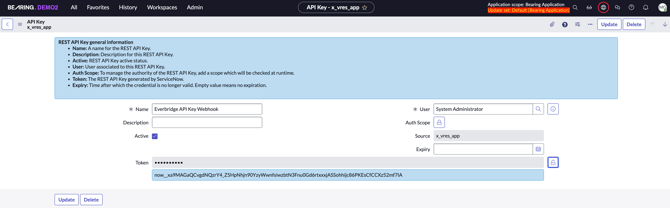
This control allows you to manage API keys for the Alerts API. The Alerts API enables external systems to feed alerts directly into the Bearing application through a secure, structured interface. To access the Alerts API Setup, you will need to navigate to the Configuration Page > System Definitions > Alerts API Setup > Configure API Key.
Note: Only users with the admin role can generate or revoke API keys.
Generate a New API Key
- In the API Keys table, select the "New" button in the top-right corner.

- Fill out the applicable fields
- Name: Create an easy-to-remember reference name for future edits
- Description: Use a quick description for future reference
- User: This is the user responsible for the use of the API Key
- Click Submit to generate the token
- Click on the Lock icon to view the generated token.