Tasks
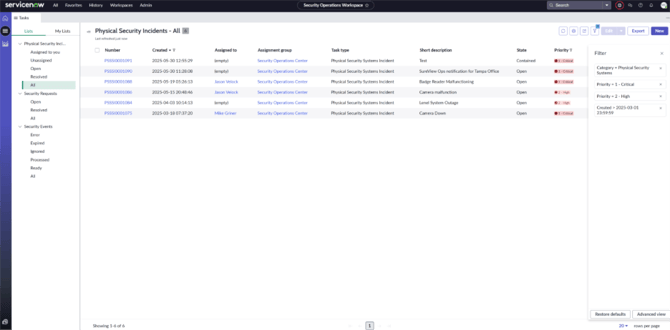
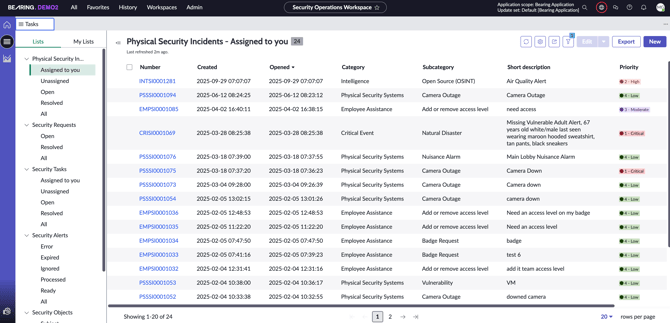
To access the Tasks page, go to the Bearing application and select the “Tasks” icon on the left side of the screen. This icon is located directly below the “Home” icon and above the “Assessment Overview” icon. On the left-hand side of the page, you will be able to see a list of the Physical Security Incidents, Security Requests, Security Tasks, Security Alerts, Physical Security Operations, and Security Objects. To view the details of an incident, request, alert, etc., simply select the blue hyperlink associated with the number.
Modify the Tasks Page
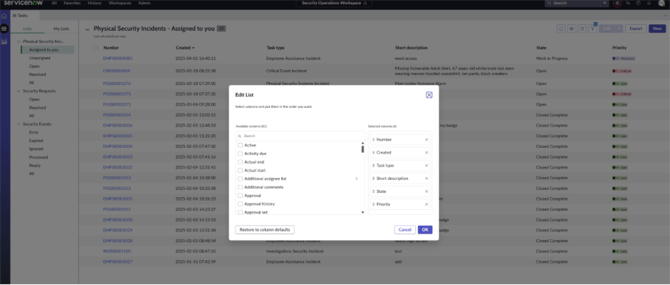
To modify the visible columns in the Tasks page, select the gear icon in the top right corner, and select “Edit Columns”. Select which columns you would like to view in the “Available Columns” field on the left side of the screen, and they will move to the “Selected Columns” field on the right side of the screen. To remove a column, simply select the “X” icon to the right of the column name in the “Selected Columns” field. To adjust the order of the visible columns, simply drag and drop the column name in the “Selected Columns” field to the order you would like it to be in. Then select “OK” when finished. The Tasks page will refresh and display the selected column fields and order you selected.
Filter the Tasks Page
In the Tasks page, select the “Show Filter Panel” (funnel) button in the top right, next to the “Edit” button. This will open up the filters page on the right side of the screen. Select “Advanced View” at the bottom of the screen to display a pop-up window where you select your filter parameters. Select the filter conditions you would like to set and select “Update”. The Tasks page will then use the selected conditions to display only the incidents that meet the parameters that you set. To remove the filters, in the Filter page select “Restore Defaults” at the bottom of the screen.